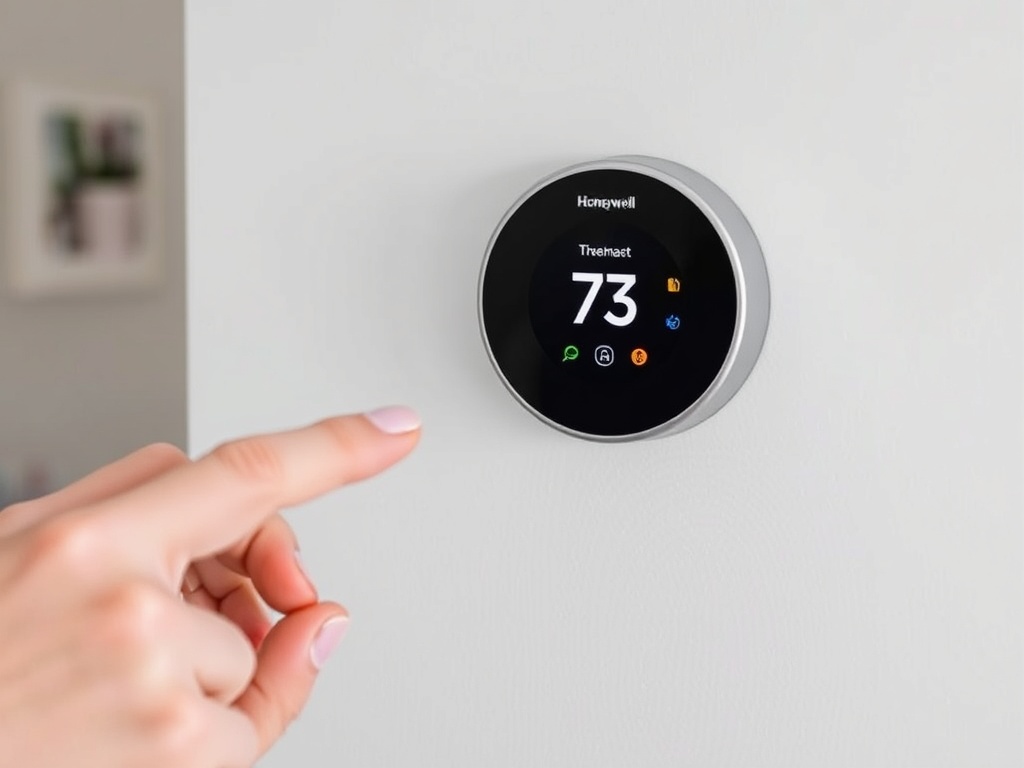
When it comes to maintaining the perfect indoor climate, choosing the right thermostat is crucial. The Honeywell WiFi Thermostat stands out as a popular choice for homeowners looking to enhance energy efficiency and control their heating and cooling systems remotely. In this comprehensive guide, we’ll delve into its features, benefits, installation tips, and more, ensuring you have all the information you need to make an informed decision.
What is a Honeywell WiFi Thermostat?
The Honeywell WiFi Thermostat is a smart device that allows you to manage your home’s temperature through WiFi connectivity. This means you can control your heating and cooling systems from anywhere using your smartphone, tablet, or computer. With advanced scheduling capabilities and intuitive controls, the Honeywell WiFi Thermostat offers both convenience and energy savings.
Key Features of the Honeywell WiFi Thermostat
- Remote Access: Control your home temperature from anywhere using the Honeywell Home app. Whether you’re at work or on vacation, you can adjust your settings with just a few taps.
- Energy Efficiency: Smart features like adaptive scheduling and energy usage reports help you reduce your energy bills while maintaining comfort.
- Easy Installation: Honeywell offers user-friendly installation guides and videos, making it quick for even the least tech-savvy individuals to set up their thermostat.
- Compatibility: The Honeywell WiFi Thermostat is compatible with most heating and cooling systems, including gas, electric, and heat pump systems.
- Voice Control: The thermostat integrates seamlessly with smart home systems, including Amazon Alexa and Google Assistant, allowing for voice-activated temperature adjustments.
- Smart Alerts: Get notifications about extreme temperature changes or when it’s time to change your filter, ensuring your system runs smoothly and efficiently.
Benefits of Using a Honeywell WiFi Thermostat
- Enhanced Comfort: With the ability to adjust settings remotely, you can return to a perfectly comfortable home after a long day.
- Energy Savings: Customizable schedules and the ability to monitor energy usage helps you reduce unnecessary energy consumption, which translates to lower utility bills.
- User-Friendly Interface: The intuitive touchscreen display and mobile app interface make it easy for users ofall ages to operate and customize settings.
- Data Insights: The thermostat provides detailed reports on energy consumption patterns, helping you identify areas for further savings.
- Robust Customer Support: Honeywell offers extensive customer service resources, including user manuals, FAQs, and customer service representatives who are ready to assist with any issues that may arise.
Installation Guide for Honeywell WiFi Thermostat
Installing your Honeywell WiFi Thermostat can be a straightforward process. Here’s a step-by-step guide to help you get started:
Tools Required:
- Screwdriver
- Drill (if needed)
- Level (optional)
- Smartphone or tablet for app setup
Step-by-Step Installation:
- Turn Off Power: Before beginning, ensure that the power to your heating and cooling system is turned off at the breaker to prevent any electrical hazards.
- Remove the Old Thermostat: Carefully take off your old thermostat’s faceplate and disconnect the wires. Label the wires with the stickers provided to ensure easy reconnection.
- Install the New Wall Plate: Mount the Honeywell WiFi Thermostat’s wall plate using the supplied screws. Use a level to ensure it’s straight.
- Connect the Wires: Attach the labeled wires to the corresponding terminals on the Honeywell unit. This is where the labeled stickers come in handy to avoid confusion.
- Attach the Thermostat: Snap the thermostat onto the wall plate until it clicks into place.
- Restore Power: Go back to your breaker and restore power to your HVAC system.
- Download the App: Download the Honeywell Home app on your smartphone or tablet, and follow the prompts to connect your thermostat to your WiFi network.
- Set Up Your Preferences: Once connected, you can start setting up your temperature schedules and preferences through the app or directly on the thermostat.
Tips for Optimizing Your Honeywell WiFi Thermostat
- Leverage Scheduling Features: Set up a heating and cooling schedule that complements your lifestyle. For example, program the thermostat to lower the temperature when you’re at work and raise it before you return home.
- Utilize Geofencing: If your Honeywell WiFi Thermostat has geofencing capabilities, use it to automatically adjust temperatures based on your location. This not only enhances comfort but also maximizes energy savings.
- Regular Maintenance: Regularly check and change your HVAC filters, and keep an eye on alerts from the thermostat to ensure optimal performance.
- Monitor Energy Reports: Review monthly energy reports to gauge your consumption and make necessary adjustments to your temperature settings or schedules.
- Explore Smart Home Integration: Make the most of your smart home setup by integrating the thermostat with other devices like smart lights or security systems for added convenience and efficiency.
Conclusion
The Honeywell WiFi Thermostat is a powerful tool for enhancing your home’s comfort and energy efficiency. With its user-friendly interface, advanced features, and remote access capabilities, it’s an ideal solution for modern homeowners. Whether you’re looking to save on energy bills or simply wish to enjoy a comfortable living environment at all times, investing in a Honeywell WiFi Thermostat is a step in the right direction. Explore the benefits, take advantage of the installation tips, and optimize your thermostat settings for the ultimate home comfort experience. Your pathway to effortless climate control starts with the Honeywell WiFi Thermostat.
FAQs about Honeywell WiFi Thermostat
1. What models of Honeywell WiFi Thermostats are available?
Honeywell offers several models of WiFi thermostats, each with various features. Popular models include the Honeywell Home T9, T10, and RTH9585WF. Each model varies in terms of capabilities like multi-room zoning, smart home compatibility, and display options.
2. How do I install the Honeywell WiFi Thermostat?
Installation typically involves the following steps:
- Turn off the power to your HVAC system.
- Remove your old thermostat and label the wires.
- Mount the new wall plate and connect the wires according to the provided guide.
- Snap the thermostat onto the wall plate.
- Restore power and connect the device to your WiFi network using the Honeywell Home app.
3. Is professional installation required for the Honeywell WiFi Thermostat?
While the Honeywell WiFi Thermostat is designed for easy DIY installation, those who are unfamiliar with electrical wiring or HVAC systems may prefer to hire a professional. However, detailed installation manuals and videos are available to assist DIY users.
4. What should I do if the thermostat does not connect to WiFi?
If you experience connectivity issues, try the following:
- Ensure your WiFi network is active and the signal strength is strong in the thermostat’s location.
- Verify that the thermostat is within range of the WiFi router.
- Restart both your thermostat and your router.
- Re-enter the WiFi password, ensuring it’s entered correctly. If issues persist, consult Honeywell’s customer support.
5. Can I control the Honeywell WiFi Thermostat with my voice?
Yes, the Honeywell WiFi Thermostat can be controlled via voice commands if integrated with smart home systems such as Amazon Alexa and Google Assistant. You can adjust temperatures, set schedules, and more using simple voice commands.
6. Does the Honeywell WiFi Thermostat have a battery backup?
Most Honeywell WiFi Thermostats are equipped with a battery backup feature that allows them to maintain settings during power outages. However, the thermostat primarily operates using a power supply from your HVAC system, so it’s important to ensure that the system is functioning properly.
7. What if my thermostat shows a blank screen?
A blank screen could be caused by several issues:
- Power supply issues: Check that the HVAC system is powered on and functioning.
- Blown fuse or tripped circuit breaker: Inspect and reset as necessary.
- Dead batteries (if applicable): Replace the batteries if the model uses them. If troubleshooting does not resolve the issue, contact Honeywell support.
8. Can I schedule different temperature settings for weekdays versus weekends?
Yes! Honeywell WiFi Thermostats allow you to create flexible schedules that can differ between weekdays and weekends. This feature can help optimize energy use while ensuring your home is comfortable when you’re there.
9. Is the Honeywell WiFi Thermostat compatible with all HVAC systems?
The Honeywell WiFi Thermostat is compatible with most major HVAC systems, including gas, electric, and heat pump systems. However, compatibility can depend on the wiring configuration of your existing system. Before purchasing, check the specifications for compatibility with your specific system.
10. What types of alerts can I receive from the Honeywell WiFi Thermostat?
The Honeywell WiFi Thermostat provides various smart alerts, including:
- Extreme temperature changes in your home.
- Notifications when it’s time to change your air filter.
- Alerts if there are issues detected with your HVAC system. These alerts help maintain the efficiency and reliability of your heating and cooling system.
11. How can I optimize the energy savings with my Honeywell WiFi Thermostat?
To optimize energy savings:
- Set heating and cooling schedules according to your routine, using lower temperatures when no one is home.
- Use the eco-mode or energy-saving settings available.
- Enable features like geofencing, which adjusts temperatures based on your presence in the home.
- Regularly monitor energy usage reports provided by the thermostat.
12. What do I do if I need technical support?
If you have technical issues or need support:
- Check the Honeywell website for troubleshooting guides, frequently asked questions, and user manuals.
- Contact Honeywell customer support directly through phone or online chat for personalized assistance.